Understanding user accounts in macOS: How to add, switch, and manage Mac users
Posted on
by
Kamso Oguejiofor-Abugu

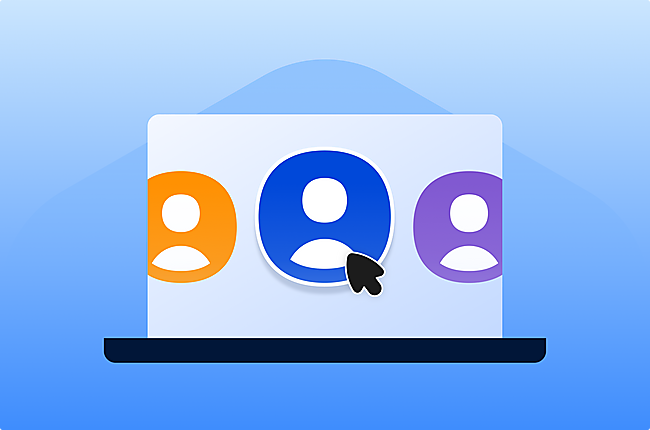
Setting up different accounts on a Mac gives everyone their own space. Your files, apps, and preferences stay exactly where you left them, separate from whatever anyone else is working on.
It’s a practical way to share a family computer or keep a school project from getting mixed up with someone else’s. Accounts can also help you keep work and personal activity organized, even if you’re the only person using the computer.
This guide explains how to add another user to your Mac, switch between accounts, choose the right account type, and manage or delete accounts safely when you no longer need them.
How do Mac user accounts work?
Mac user accounts let different people use the same Mac while keeping their files, settings, apps, passwords, and activity separate. You can add another user from System Settings > Users & Groups, choose whether they should be a Standard or Administrator user, and switch between accounts from the menu bar, Control Center, or login screen.
For most people, a Standard account is the safest choice for everyday use. Only give someone an Administrator account if they need to install software, add users, or change important system settings.
What is a user account on Mac?
A Mac user account is a separate personal space for someone sharing a Mac with others. The account keeps your files, settings, apps, and activity separate from other users on the computer.
You’re free to organize your folders, save your passwords, and choose a desktop look that suits you. These preferences stay tied to your account, so they’re exactly the same each time you sign back in.
What is Users & Groups on Mac?
Users & Groups is the section in macOS where you add, remove, and manage user accounts. It also lets you choose each person’s account type, manage Guest User access, create groups, and control who can make system-level changes.
From here, you can:
- Set up separate accounts for family or colleagues
- Decide which people have the authority to change system-wide settings
- Set up a Guest User account for temporary access
- Create groups that share the same folders or permissions
- Help someone get back into their account if they’ve forgotten their password
- Remove accounts for people who aren’t using the Mac anymore
You can find these options by clicking the Apple icon in the corner of your screen and going to System Settings > Users & Groups.
How to add another user on Mac
To add another user on Mac, go to System Settings > Users & Groups, click Add User, enter your administrator password, choose an account type, and create the new user’s name and password.
- Open the Apple menu at the top of your screen.
- Go to System Settings.
- Select Users & Groups in the sidebar.
- Click the Add User button.
- Enter your administrator password if prompted.
- Choose the type of account you want to create.
- Fill in the person’s name and create a password they can remember.
- Click Create User.
Once you’re finished, that person can sign in with their own password from the main login screen.
Most people will only ever need a Standard account; this lets them use apps and save files without changing how the Mac works for others.
Only use an Administrator account if the person needs the authority to add new users, install software, or change important security settings.
How to add an account on a MacBook
The process is the same whether you use a MacBook, iMac, Mac mini, or another Mac desktop.
If you are using a current version of macOS, open System Settings > Users & Groups, and then click Add User. Once you enter your admin password, the Mac will walk you through choosing an account type and setting up their name and password.
How to switch users on Mac
You can switch users on Mac from the menu bar, Control Center, Touch ID, or the login screen. Fast User Switching lets another person sign in while keeping your apps and windows open in the background. Logging out also lets you switch users, but it closes your current session first.
To make sure these shortcuts are available, go to System Settings > Control Center, then scroll to Fast User Switching. From there, you can set the feature to show in the menu bar or Control Center.
Switch users from the menu bar
You can use Fast User Switching to switch to another account while keeping your apps and windows open. If the feature is turned on, you’ll see a name or user icon at the top right of your screen. Click the name or icon, select the account you want to use, and have the user enter their password.
Switch users from Control Center
You can also switch accounts from the Control Center if you’ve added Fast User Switching there. Open Control Center, click the user icon at the bottom, then select the name of the person signing in and enter the password.
Switch users from the login screen
Another way is to log out from the current account in use. This takes you back to the login screen where all user accounts are listed, letting you pick a different account and sign in. Just click the account you want to use and enter the password as you usually would.
To do this, click the Apple menu in the top-left corner of your screen and choose to log out. A confirmation message will appear before you return to the login screen.
Keep in mind that logging out closes everything you were working on, unlike the other methods that keep your session active in the background.
Switch user accounts using Touch ID
If multiple people are logged into the same Mac, users can switch accounts with Touch ID.
If your Mac has a Touch Bar, place your finger over the Touch ID sensor until it tells you to click it. If not, press the Touch ID sensor until you feel it click. Once the Mac recognizes your fingerprint, it’ll open your specific workspace.
What are the different types of Mac user accounts?
When you share a Mac, you can set up different types of accounts depending on how much control each person needs over the system. Picking the right setup for a family member, colleague, or guest helps keep their files separate from yours and prevents anyone from changing important system settings.
1. Administrator account
An Administrator account is best for the person who owns or manages the Mac. This account can install software, change system-wide settings, manage other user accounts, and approve major system changes.
When you first set up a Mac, you have to create a user account, and that first user account is an Administrator account. Every Mac needs at least one Administrator account so someone can manage updates, security settings, and other system-level changes.
Since Administrator accounts have full control, it’s usually best to keep them limited to trusted users. This reduces the risk of accidental changes or unwanted software installs, or security settings being changed without a good reason.
2. Standard account
A Standard account is best for everyday use. The person can use apps, save files, organize documents, and adjust their own settings without having control over the whole Mac.
This type of account works well for family members, children, coworkers, or anyone who uses the Mac regularly. Standard users can do most normal tasks, but they cannot manage other users or change important system-wide settings without administrator approval.
3. Sharing-only account
A Sharing-only account is for someone who needs remote access to shared files or folders on your Mac without signing in to the Mac itself.
This is more common in workplaces, schools, or shared network environments. It can be useful when someone needs access to specific files, but should not have their own full workspace on the Mac.
4. Guest account
A Guest account is useful when someone needs temporary access to your Mac.
Guests can use the Mac without signing into your personal account or seeing your files. When they log out, macOS removes their session data, so their files and activity are not saved.
5. Child account with Screen Time
A child account is usually a Standard account with Screen Time settings added.
This lets you decide which apps your child can use, set downtime, limit screen time, manage communication settings, and apply content restrictions. It is a better option than sharing your own account because your child gets a separate space while you keep control over the limits.
6. Groups
Groups help manage permissions for several users at once.
They are mainly useful in workplaces, schools, or shared environments where multiple accounts need the same access to files, folders, or resources. Most home users will not need to create groups, but they can be helpful when several people need the same permissions.
Should every Mac user be an administrator?
No. Most Mac users do not need administrator access for everyday use. A Standard account is safer because macOS asks for an administrator password before allowing major system changes, such as adding users, changing security settings, or installing certain software.
It’s safer to use a Standard account for everyday access because macOS will ask for an administrator password before allowing major system changes.
It’s also a good idea to limit administrator access to the people who actually manage the Mac. If someone’s role changes and they don’t need to manage the system anymore, you can easily change their account back to a Standard account.
To keep things secure, consider turning off automatic login for Administrator accounts. Making sure the Mac asks for a password at startup is a simple way to keep your files and settings private, especially if the Mac ends up in someone else’s hands.
Administrator vs standard account on Mac: what’s the difference?
An Administrator account can manage the Mac, install software, add or delete users, and change system-wide settings. A Standard account is for everyday use. Standard users can use apps, save files, and adjust their own settings, but they need administrator approval for major changes.
For shared Macs, it’s usually safer to give most people Standard accounts and keep Administrator access limited to the person responsible for managing the Mac.
When should you create a separate Mac user account?
A separate account is useful for families sharing one Mac at home. Partners, children, parents, or roommates can have their own files, photos, browser history, apps, and settings.
Separate accounts can also help you divide work and personal use on your Mac. You can keep your spreadsheets and work emails in one place, while saving your personal messages and movies for an account meant only for relaxing.
If your child uses the Mac regularly, their own account makes it easier to manage Screen Time settings and app limits. Similarly, if a friend just needs to borrow the computer for a moment, the Guest User option lets them browse without giving them your system password.
Sometimes, you might want someone to see a specific folder without actually using the computer. A Sharing-only account lets them access the files they need but keeps the rest of your settings and folders out of sight.
How to delete a user account on Mac
To delete a user account on Mac, sign in as an administrator, go to System Settings > Users & Groups, click the information button next to the account, and choose Delete User. Before deleting the account, decide whether to save the user’s files in a disk image, leave the home folder in place, or remove the files permanently.
It’s worth taking a final look through the folders to see if there are any photos or documents you might want to keep. If you decide to wipe the folder, those files will be erased and you won’t be able to get them back unless they were saved somewhere else.
Mac user account security tips
A little care with how you set up user accounts helps keep a shared Mac organized and reduces the risk of one person’s changes affecting everyone else.
- Limit administrator access: Give most people a Standard account for daily use, and remove old accounts that no longer need access. This reduces unnecessary administrator access and lowers security risks.
- Use strong passwords for each account: Give each person their own login and password to help keep personal files, messages, and settings private.
- Use Guest User for visitors: If someone only needs temporary access, let them sign in as a Guest. They can browse the web without accessing your files, and their activity is removed when they sign out.
- Remove unnecessary startup apps: Check your Login Items and remove apps that don’t need to open automatically. This can help improve how fast your Mac starts up. It’s also a good idea to occasionally clean up your Mac to free up space and avoid system slowdowns.
- Keep macOS and apps updated: Update your Mac and apps regularly to get the latest fixes and keep your Mac running reliably. This is one of the simplest ways to help keep your Mac secure.
- Scan for threats: If multiple people download files or share documents on the same Mac, a Mac virus scanner can help detect harmful files and protect the system.
Frequently asked questions
How do I add another user on Mac?
To add another user on Mac, go to System Settings > Users & Groups and select Add User. You’ll need your administrator password to set up the new account.
How do I switch users on Mac?
You can switch users on Mac using Fast User Switching from the menu bar or Control Center. You can also log out to return to the login screen and choose another account, but logging out closes your current session.
What is Users & Groups on Mac?
Users & Groups is the macOS settings area where you add, delete, and manage user accounts. It also lets you choose account types, manage Guest User access, create groups, and control who can make system-level changes.
Can I have 2 users on a MacBook?
Yes, it’s possible to have two or more user accounts on a MacBook. Each user gets their own account with separate files, settings, apps, passwords, and preferences.
What is the difference between admin and standard users on Mac?
Administrator accounts can change system-wide settings, add new user accounts, and install software from outside the App Store. Standard accounts are designed for everyday use and personal settings.
Should I make another user an administrator on Mac?
For most people, a Standard account is enough. It’s usually best to give someone an Administrator account only if they truly need to oversee the entire system.
What happens when I delete a user account on Mac?
If you decide to delete an account, macOS asks if you want to keep a copy of that person’s files or permanently remove them. Before deleting anything, check for files or documents you may want to save.
Can I create a child account on Mac?
Yes. You can create a Standard account for a child and manage it with Screen Time. This lets you set app limits, downtime, communication limits, and content restrictions.
What is a Guest User account on Mac?
A Guest User account lets someone use your Mac temporarily without accessing your personal files. When the guest logs out, macOS removes the guest session data.
Can I use separate Mac accounts for work and personal use?
Yes. Separate accounts can help keep work files, personal files, browser activity, apps, and settings apart, even if you are the only person using the Mac.